
What Is DPI / PPI
What Is DPI (Dots Per Inch)
DPI stands for Dots Per Inch.It refers to the number of dots a printing or output device can place within one inch (2.54 cm).
In the printing industry, DPI is mainly used to describe the output precision of printers and presses.
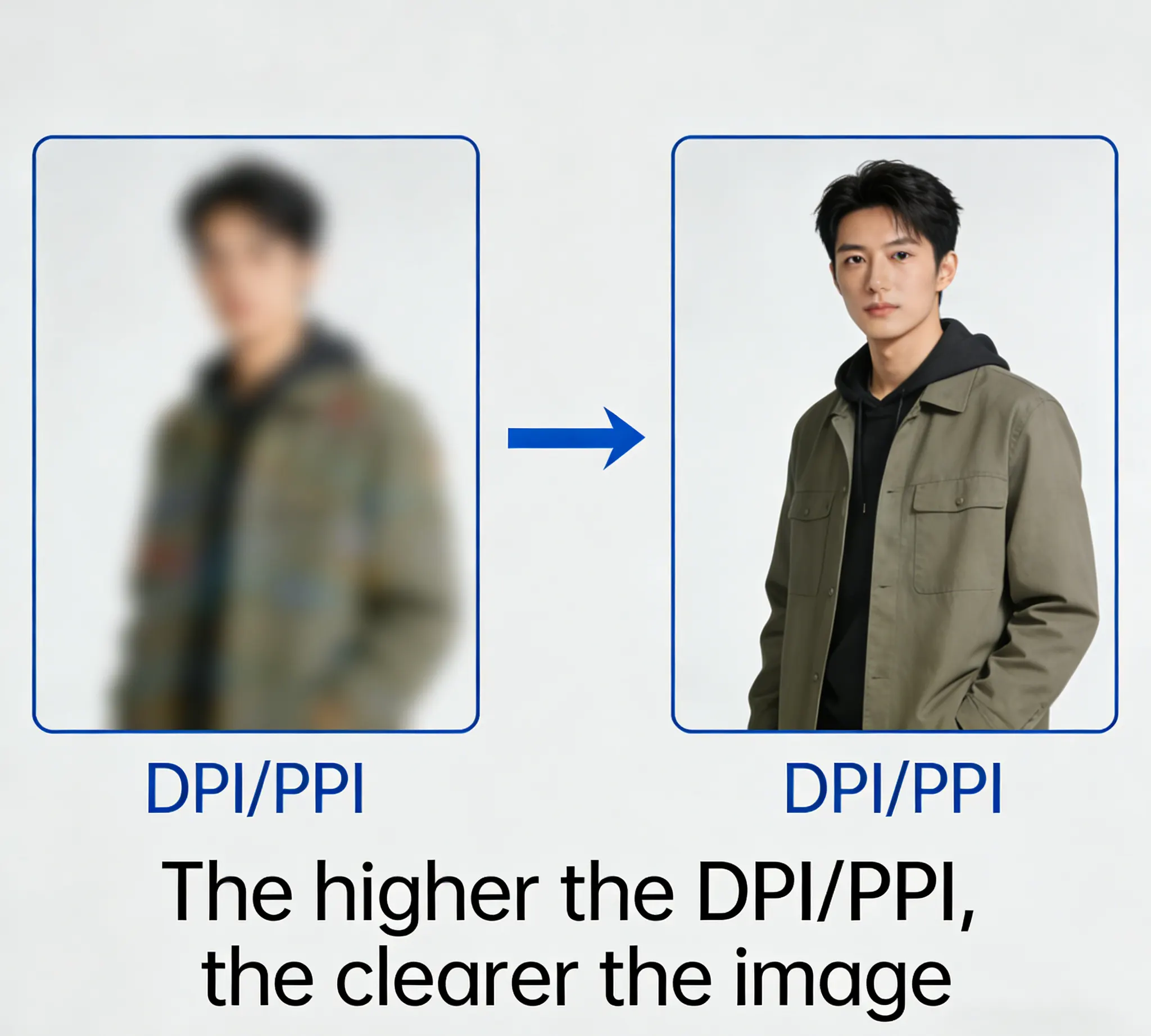
The higher the DPI, the more dots are printed per inch, resulting in finer details and smoother edges.
Typical DPI references
Screen display: 72 DPI or 96 DPI
Standard printing: 300 DPI
High-end books / photo printing: 300–600 DPI
Large-format printing (viewed from a distance): 72–150 DPI
Higher DPI does not always mean better quality.
The optimal DPI depends on print size, viewing distance, and printing method.
Excessively high DPI only increases file size without visible improvement.
What Is PPI (Pixels Per Inch)
PPI stands for Pixels Per Inch.It describes the resolution of a digital image itself, indicating how many pixels are contained within one inch.
PPI is commonly used for
Digital photos
Scanned images
Displays, cameras, and image sensors
For example
An image set to 300 PPI means there are 300 × 300 pixels per square inch.
Higher PPI provides more image detail and better clarity when printed.
Difference Between DPI and PPI
PPIDescribes image resolution
Applies to digital files
DPI
Describes output resolution
Applies to printers and printing equipment
In simple terms
PPI determines the quality of the file you provide
DPI determines how finely the printer can reproduce that file
For high-quality printing
A high-PPI image combined with appropriate DPI output is essential
If the original image resolution is too low, increasing DPI cannot restore lost details
Recommended DPI / PPI for Printing Files
For most commercial printing projectsRecommended image resolution: 300 PPI at final print size
Common mistakes
Using screen images (72 PPI) directly for printing
Upscaling low-resolution images, resulting in blurry or pixelated prints
Professional tip
Prepare files at the correct print size and resolution from the beginning
Avoid artificially increasing resolution during post-production